DBConvert and DBSync share the same five-stage workflow. Open the app, walk through each stage, save the result as a session, and either run it once or schedule recurring runs.
- 1. Choose Source
- 2. Choose Destination
- 3. Customization
- 4. Execution
- 5. Scheduling
- Command-line mode
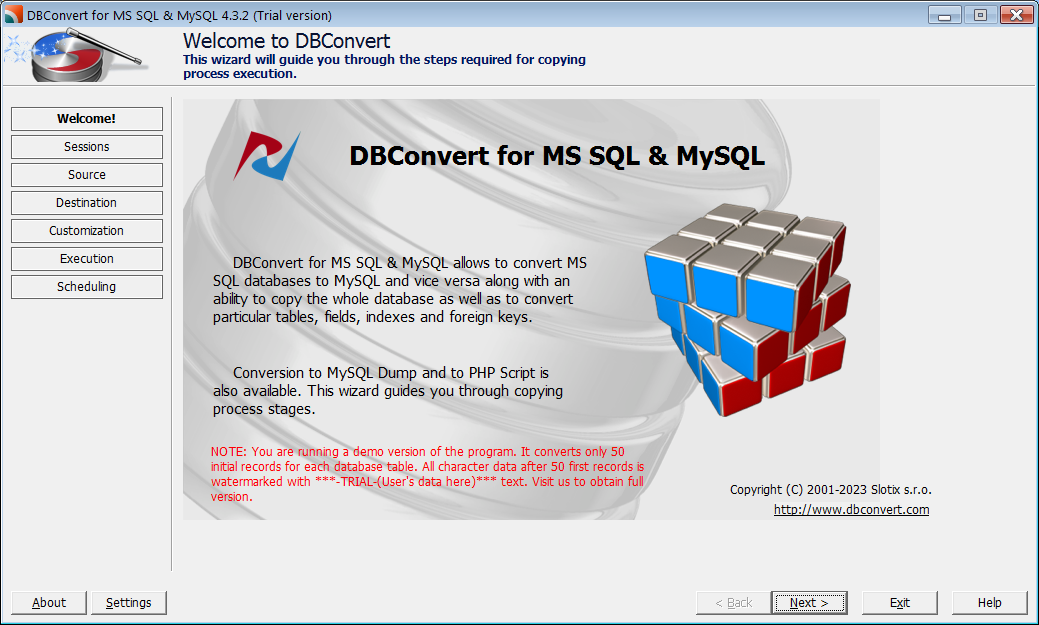
1. Choose Source
Pick the source database engine and fill in its connection fields. Each engine has its own fields and extra options.
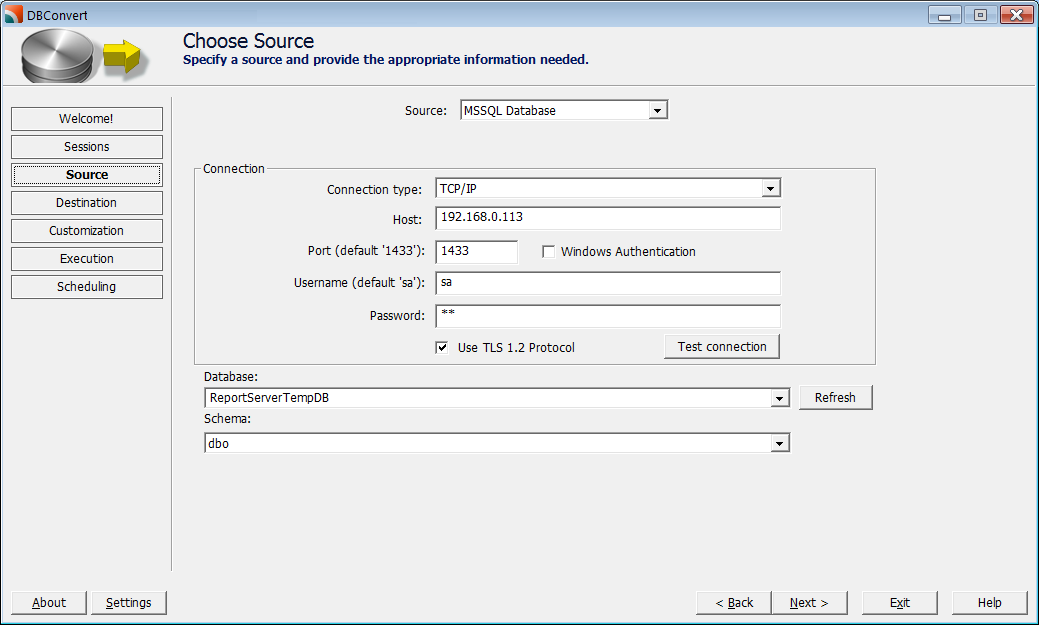
Engine-specific details are in Source and destination connections and the per-engine Connection guides.
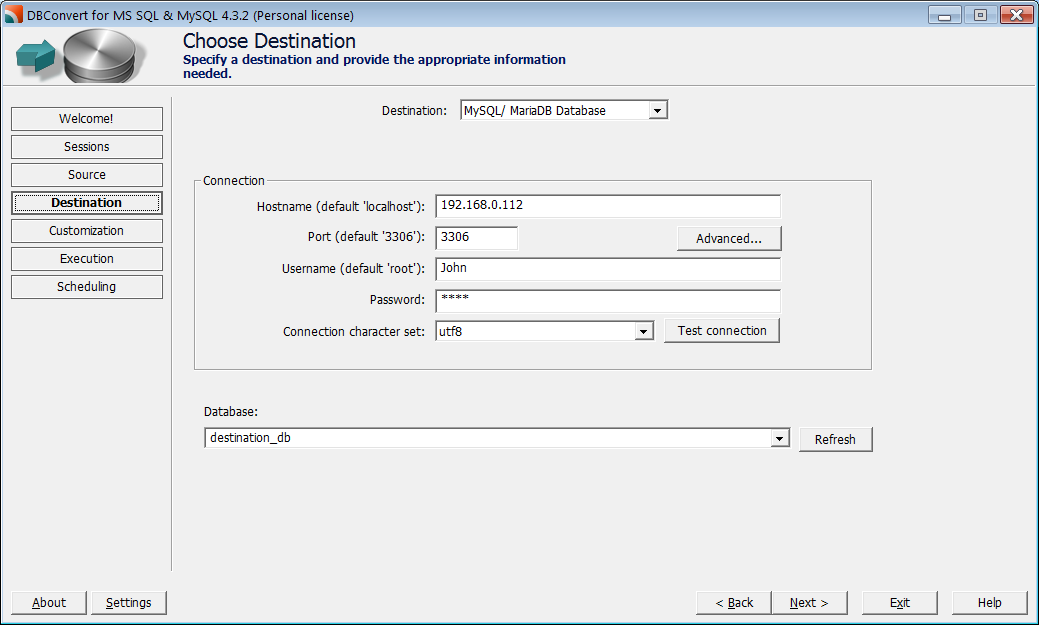
2. Choose Destination
Pick the target engine. DBConvert additionally offers dump files and PHP scripts as targets; DBSync does not.
3. Customization
Tick the database objects to migrate and override defaults at the database, table, field, index, or foreign-key level. Problems detected against the chosen destination are flagged in the tree (red for errors, yellow for warnings).
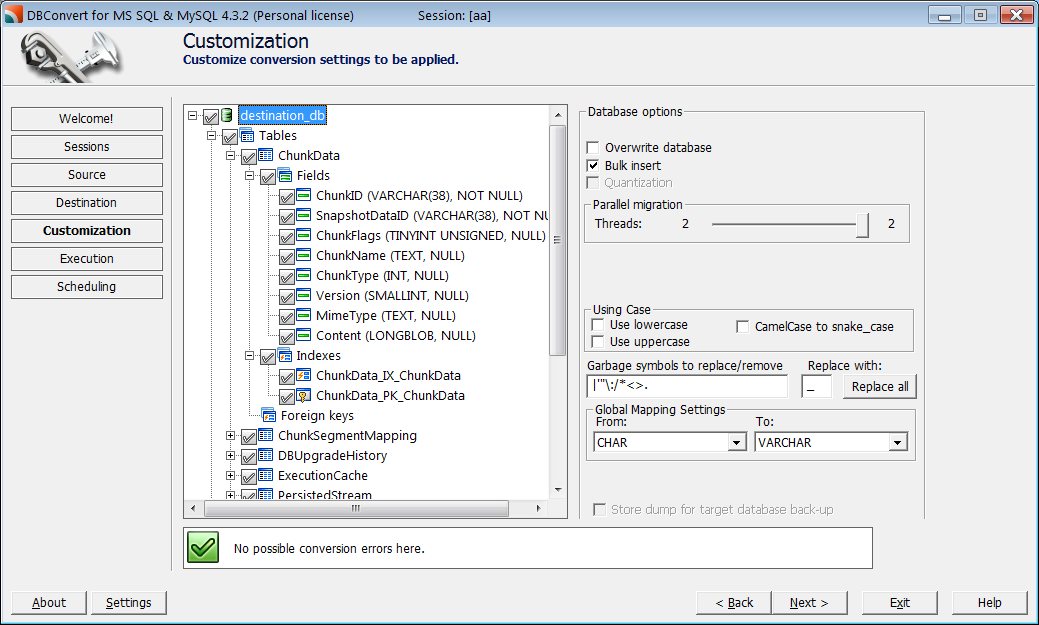
See Customization overview for the controls in each panel, and Pre-migration checks for how to resolve the flagged items.
4. Execution
The run itself. Save the configuration as a session, then click Commit. Two progress bars show total and current-operation progress; the log records everything the run did.
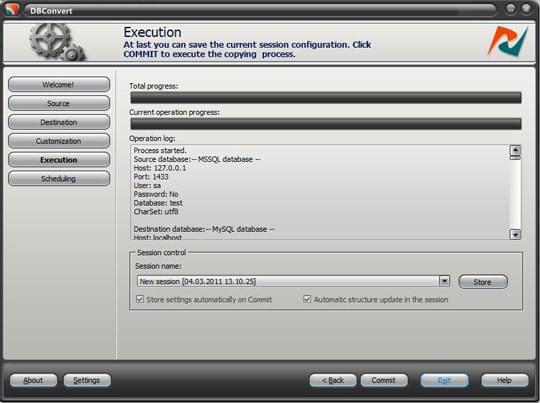
See Execution and sessions for what the session file stores and how to rerun saved configurations.
5. Scheduling
If the same session should run repeatedly, add it as a scheduled task on the Scheduling stage. The built-in scheduler runs as a Windows service.
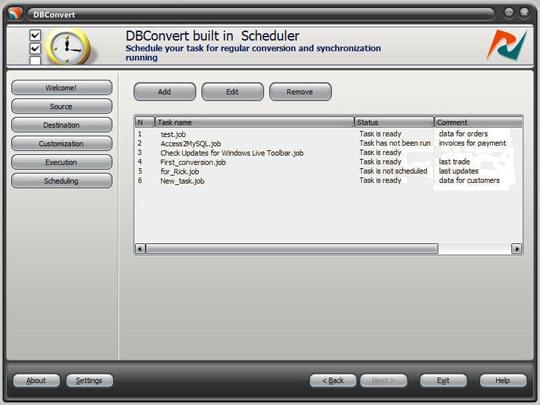
Setup details and the FAQ are in Built-in scheduler.
Command-line mode
Once a session is saved, DBConvert and DBSync can run it headless from the command line - useful for unattended and scheduled runs. See Command-line mode for the syntax and options.