The built-in scheduler runs saved DBConvert or DBSync sessions automatically at a specific time or interval.
Use it when the same migration or synchronization task should run without opening the full workflow each time.
Follow these steps to configure the scheduler.
Scheduling stage
Clicking the “Scheduling button”, as shown on picture below, opens up opportunities to add, edit and remove scheduling tasks to be executed at specified time.
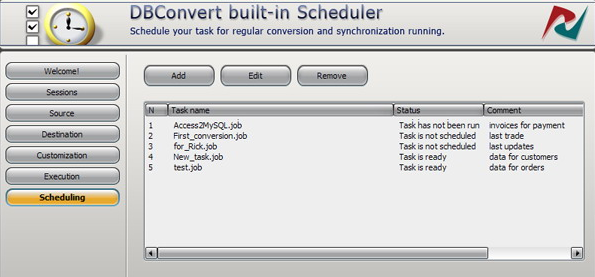
Add new task
Click on the "Add" button to put a new scheduled job in the list of executed tasks. "Add new task"dialog appears where you can specify additional parameters.
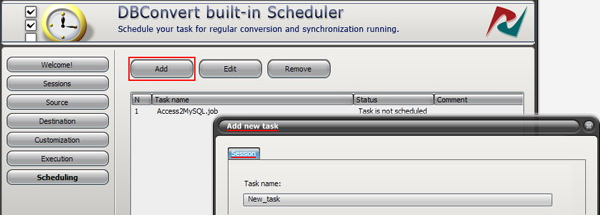
In the "Session" tab enter a name for a task in "Task name" field which describe it the best.
Select desired application from "Application" list to be launched. An application itself is chosen by default.
Specify previously saved session or a current one at “Session” field.
"Running file" field keeps the path to an executable bat file.
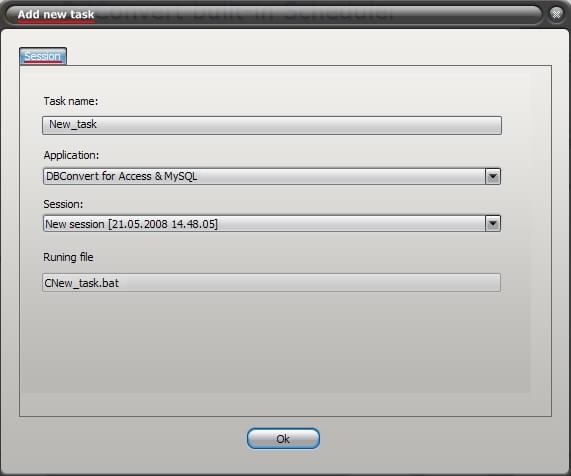
Click “Ok” button to save settings.
Edit scheduled task
Press "Edit" button to edit the currently selected scheduled task. Or you can double click a task at listbox. Specify task settings in "Edit task" dialog box.
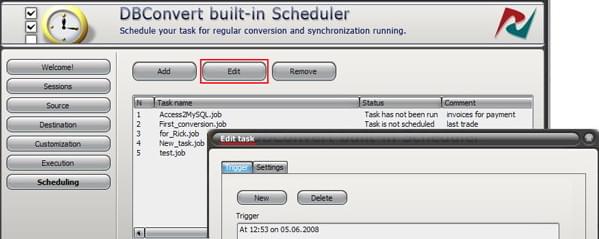
"Triggers" tab contains fields for setting up triggers conditions specify the triggers conditions for each task.
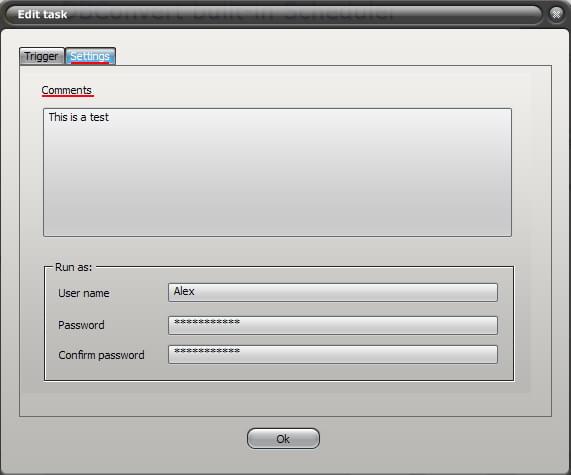
You can add notes/ description for each scheduled job at the "Settings" tab. This information will be shown in the main window.
The next fields are required for proper scheduling process. Otherwise your task won't be executed. Enter your user login and password for Windows system into the fields "User name" and "Password". Repeat your password at "Confirm password" field
Trigger Settings
Our built-in Scheduler launches migration jobs using triggers specified in "Trigger settings" dialog. You can setup triggers to start tasks depending on definite date and time in any combination.
Use "New" and "Delete" buttons to add new triggers and remove unnecessary ones accordingly.
Please Note that New triggers can be added not only for new tasks but for the already existed ones as well.
Each scheduling task has its own execution status showing what currently happened or should happen with selected task. Here is the list of possible status messages:
- Task is running - selected task is currently executing
- Task is ready - the task is ready to be launched at the next scheduled time
- Task has been disabled - the task will not be launched at the specified time because as it has been disabled
- Task has no more runs - there are no more runs scheduled for this task
- Task has not been run - the task has not been run by some reason, even if the task will be launched at the next scheduled time or the task is a recurring one
- Task is not scheduled - the trigger is not specified
- Task has no valid triggers - the task has no triggers or the existing triggers are disabled or not specified.
Certain time and/or date can be specified for Triggers running at. Below there are some examples showing variety of ways for Triggers setup:
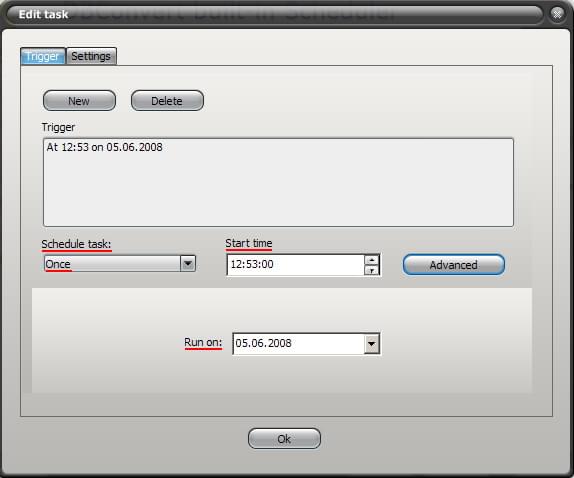
1. Once
Specify a particular date and time for a task to be executed once. Choose "Once" option from the "Schedule task" drop down list.
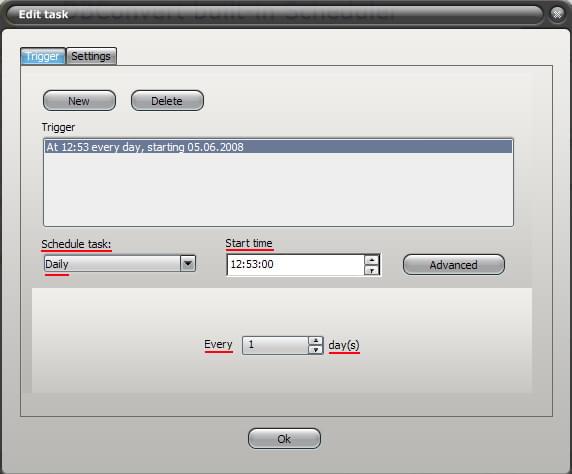
2. Daily recurring
This option arranges a day to start/ finish a task recurring set to be executed once or several times at a specified time. Choose "Daily" option from the "Schedule task" drop down list. Customize other options like "Start time" and "Every... day(s)".
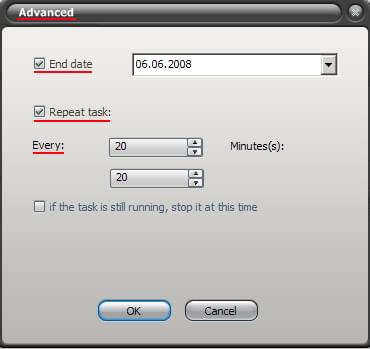
"Advanced" button opens up additional options for a current task.
"End date" option means for specifying the end date of the task execution.
Check "Repeat task" option to define the exact task duration.
If the previously specified job is still running you can check an option to stop it compulsory using this option "If the task is still running, stop it at this time" check box.
3. Weekly recurring
A task will be run on weekly basis on the definite day of a week at the specified time. Choose "Weekly" option from the"Schedule task" drop down list. Customize options "Start time" and "Every... week(s)" in this dialog.
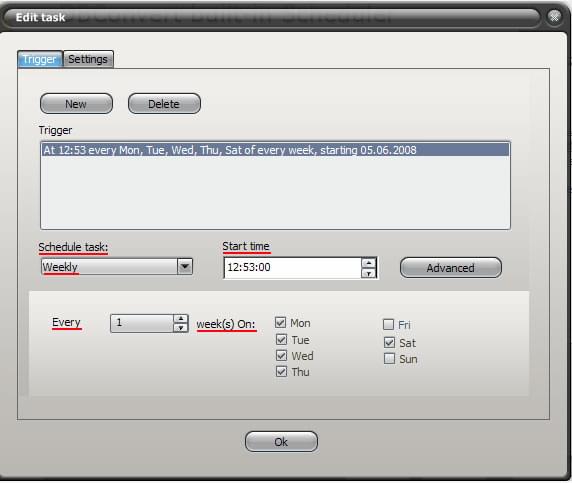
Advanced settings for weekly recurring are completely the same as they are for Daily recurring.
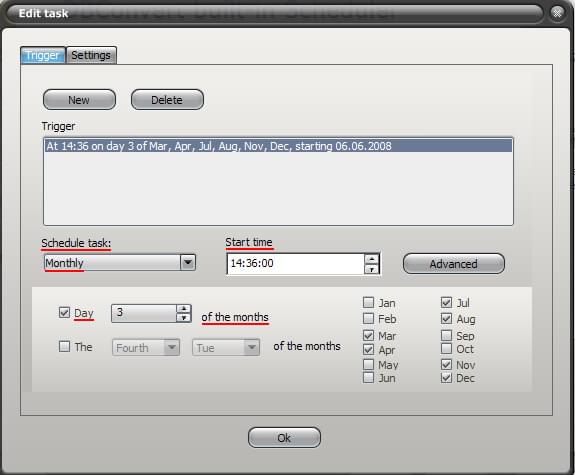
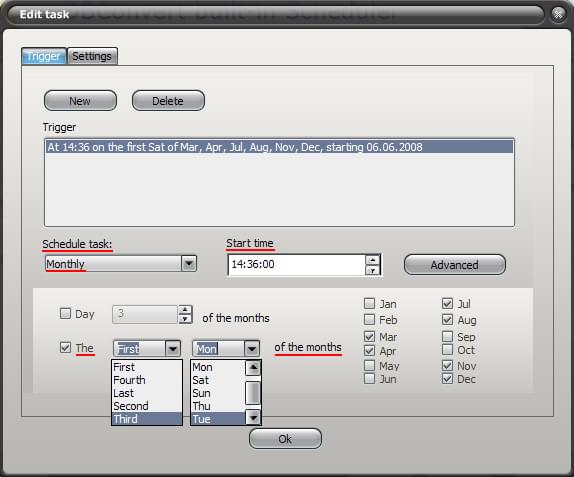
4. Monthly recurring
A task will be executed on monthly basis on the specified day of the month and at the specified time. Choose "Monthly"option from the "Schedule task" drop down list. Customize other settings as shown below.
Remove Task
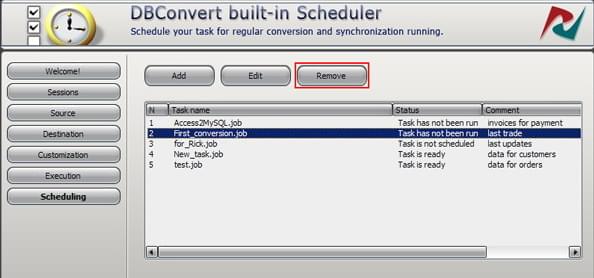
Press "Remove" button to remove a task if you don't need it anymore.
Scheduler FAQ
Do I need to launch DBConvert / DBSync manually to run scheduled tasks?
No. The scheduler runs as a Windows service and starts the configured task at the scheduled time. The DBConvert or DBSync GUI does not need to be open.
How do I make a conversion or sync run automatically?
Create a session with the source, target, and options you want, then add a task on this Scheduling stage that points at that session. The scheduler will run it unattended at the time or interval you configure.
The task does not run - status shows "Task has not been run"
The built-in scheduler relies on the standard Windows scheduler. When a task is created but never fires, check the following:
- User credentials. Press "Edit", open the "Settings" tab, and enter the Windows user name, password, and password confirmation. The credentials must match the Windows account that should run the task.
- Triggers. Open the "Triggers" tab and check that at least one trigger is enabled with a valid start time. If you set an end date, make sure it has not already passed.
- UAC on older Windows. On Windows Vista / Windows 7, User Account Control (UAC) must be disabled for scheduled tasks to launch reliably.
If you run a session from a batch file, see Command-line mode for the syntax.
For adjacent topics, continue with Savable configurations / sessions and Command-line mode.